 ukdeals
So you need a new desktop computer. You want a tidy all-in-one (no tower, fewer cables). And your budget is under £400.
Here’s the problem: Many AIO PCs in this price range are terrible.
They use slow Intel Celeron processors, skimp on RAM, and rely on sluggish eMMC storage. Within six months, you’ll be waiting 10 seconds for Excel to open.
But there are hidden gems if you know what to look for.
This guide walks you through exactly what specs matter, what to avoid, and how to spot a genuinely good value budget AIO PC in the UK in 2026.
📚 In this guide (jump to section)
- Why most budget AIO PCs are a trap
- CPU: The most important decision
- RAM: 16GB is the new 8GB
- Storage: SSD or eMMC?
- Screen size and resolution
- Operating system: Windows 11 Home vs Pro
- What’s included? Hidden costs to watch for
- Our top budget AIO PC recommendation (UK)
- Quick spec cheat sheet
🚨 Why most budget AIO PCs are a trap
Walk into Currys or search Amazon for “all in one PC under £400”. You’ll see models with impressive sounding specs like:
- “Intel Celeron Processor”
- “4GB RAM”
- “64GB eMMC storage”
These are not good computers. They are e-waste in waiting.
Here’s the reality:
| Spec | What it actually means |
|---|---|
| Celeron / Pentium | Designed for £150 Chromebooks. Struggles with Windows 11 and two browser tabs. |
| 4GB RAM | Windows 11 alone uses ~3GB. Leaves nothing for your apps. |
| 64GB eMMC | Slower than a USB stick. Also, Windows updates often fail because there’s no free space. |
A UK buyer recently left this review on a £349 AIO PC:
“Bought this for my mum to check emails. It takes 3 minutes to boot up and freezes on YouTube. Returning it.”
That’s what we’re trying to help you avoid.
A genuinely good budget AIO PC under £400 does exist – but you need to ignore the bad ones and know which specs actually matter.
🧠 CPU: The most important decision
The processor (CPU) is the brain of the computer. A slow CPU makes everything feel sluggish, no matter how much RAM or SSD you have.
What to AVOID
| CPU family | Why to avoid |
|---|---|
| Intel Celeron | Extremely slow. Fine for a £150 laptop, not a desktop. |
| Intel Pentium Silver | Only marginally better than Celeron. Still underpowered. |
| Intel Atom | Designed for tablets. Unusable for Windows 11. |
| AMD A-series | Very old architecture (2018 era). Poor performance. |
What to LOOK FOR
| CPU family | Why it’s good | Typical price range |
|---|---|---|
| Intel Core i3 (12th gen or newer) | Solid for office work, browsing, streaming | £400-£550 |
| Intel Core i5 (11th gen or newer) | Excellent performance. Handles multitasking with ease. | £450-£700 |
| AMD Ryzen 3 | Good budget option. Beats Intel i3 in some tasks. | £380-£500 |
| AMD Ryzen 5 | Very strong performance. Similar to Intel i5. | £450-£700 |
💡 Pro tip: The generation matters as much as the name. An Intel Core i5 from 2020 (10th gen) is slower than a Core i3 from 2025 (14th gen). Look for 12th gen Intel or newer and Ryzen 5000 series or newer.
Real-world performance comparison
| CPU | Can it handle? |
|---|---|
| Celeron/Pentium | Email, one browser tab (slowly). Zoom? No. |
| Core i3 / Ryzen 3 | Office apps, 5-10 browser tabs, streaming, Zoom. Acceptable. |
| Core i5 / Ryzen 5 | 20+ browser tabs, large spreadsheets, light photo editing, coding. Very smooth. |
Our recommendation: Spend the extra £50-100 to get at least a Core i3 or Ryzen 3. A Celeron will frustrate you within weeks.
🧠 RAM: 16GB is the new 8GB
RAM is your computer’s short-term memory. More RAM means you can have more apps and browser tabs open without slowdown.
How much RAM do you really need?
| RAM | Who it’s for | Real-world performance |
|---|---|---|
| 4GB | Nobody on Windows 11 | Unusable. Windows alone uses 3GB. |
| 8GB | Light users | OK for email, 3-5 tabs, one app at a time. Pushing the limit. |
| 16GB | Most people | Comfortably handles 20+ tabs, Office, Spotify, Zoom simultaneously. |
| 32GB | Power users | Overkill for most. For video editing, VMs, or heavy multitasking. |
Windows 11 minimum requirement is 4GB, but that’s a lie. 8GB is the absolute minimum for a tolerable experience. 16GB is the sweet spot for anyone who wants their computer to still feel fast in 2-3 years.
💡 Important: Many budget AIO PCs have soldered RAM (cannot be upgraded). If you buy an 8GB model and find it’s too slow, you’re stuck. Buy 16GB upfront or choose a model with upgradeable RAM.
💾 Storage: SSD or eMMC?
Storage is where your files, apps, and Windows live. The type of storage matters as much as the size.
Storage types explained
| Type | Speed | What it’s like | Should you buy? |
|---|---|---|---|
| NVMe SSD | Very fast (2000-5000 MB/s) | Computer boots in 10-15 seconds. Apps open instantly. | ✅ Yes – best option |
| SATA SSD | Fast (500 MB/s) | Boots in 20-30 seconds. Still very good. | ✅ Yes – acceptable |
| eMMC | Very slow (100-200 MB/s) | Boots in 60+ seconds. Feels like a tablet from 2015. | ❌ No – avoid |
| HDD | Extremely slow (50-100 MB/s) | Boots in 2+ minutes. Avoid unless it’s external backup. | ❌ No – avoid |
How much storage do you need?
| Size | Who it’s for |
|---|---|
| 64GB / 128GB | Not enough. Windows + updates will fill this within months. |
| 256GB | Fine for Windows + Office + browsers + a few hundred documents/photos. |
| 512GB | Comfortable for most users. Room for some games or light video projects. |
| 1TB+ | For users with large photo/video libraries or many games. |
💡 Our advice: 256GB SSD is the minimum acceptable. 512GB is better. Never buy eMMC.
🖥️ Screen size and resolution
All-in-one PCs combine the computer and screen. You can’t easily upgrade the screen later, so get this right.
Size
| Size | Best for |
|---|---|
| 21.5 inches | Small desks, kitchens, bedrooms. Text can feel a bit small. |
| 23.8 inches | The sweet spot. Comfortable for office work and media. |
| 27 inches | More screen space for multitasking. Needs a deeper desk. |
Resolution
| Resolution | Good for |
|---|---|
| 1366 x 768 (HD) | Avoid. Looks blurry on any screen over 15 inches. |
| 1920 x 1080 (Full HD / 1080p) | Standard. Sharp enough for 24-inch screens. Good for office work and streaming. |
| 2560 x 1440 (QHD / 2K) | Sharper. Better for photo editing. Usually pushes price over £500. |
| 3840 x 2160 (4K) | Very sharp. Overkill for most. Expensive. |
Curved vs flat:
- Flat screens – Standard. Fine for most people.
- Curved screens – Reduces eye strain on larger screens (24″+) by matching your field of vision. Nice to have, not essential.
💡 Our advice: 23.8-inch 1080p is the best value. Avoid 1366×768 screens entirely.
🪟 Operating system: Windows 11 Home vs Pro
Most budget AIO PCs come with Windows 11 Home. Some come with Windows 11 Pro.
What’s the difference?
| Feature | Windows 11 Home | Windows 11 Pro |
|---|---|---|
| BitLocker (encryption) | ❌ No | ✅ Yes |
| Remote Desktop | ❌ No (can only be accessed) | ✅ Yes (can access your PC remotely) |
| Hyper-V (virtual machines) | ❌ No | ✅ Yes |
| Group Policy Management | ❌ No | ✅ Yes |
| Price difference | Standard | Usually £50-100 more |
Which one do you need?
- Windows 11 Home is fine for families, students, and most home users.
- Windows 11 Pro is worth it if you run a small business, need to encrypt your data (BitLocker), or want to remotely access your work PC from home.
💡 Note: Windows 11 in “S mode” restricts you to Microsoft Store apps only. Avoid S mode unless it’s for a child or elderly relative. You can usually switch out of S mode for free.
📦 What’s included? Hidden costs to watch for
Many budget AIO PCs cut corners on included accessories. Read the listing carefully.
Check for these items
| Item | Included? (typical budget AIO) |
|---|---|
| Keyboard | Sometimes. Often cheap wired or none. |
| Mouse | Sometimes. Often cheap wired or none. |
| Webcam | Rare on budget models. Check before buying if you need Zoom/Teams. |
| Speakers | Usually yes, but quality varies. |
| Wi-Fi | Usually yes. Look for Wi-Fi 5 (802.11ac) or Wi-Fi 6. Avoid Wi-Fi 4 (802.11n). |
| Bluetooth | Not always included. Needed for wireless headphones/mouse. |
Potential hidden costs (add £20-80)
- UK keyboard – Some budget AIOs ship with US layout keyboards.
- Webcam – £20-30 if not built-in.
- Better mouse/keyboard – £15-40 if included ones are poor.
- External storage – £40-50 for 1TB if 256GB internal is too small.
💡 Factor these into your total budget. A £350 AIO that needs a £30 webcam and £15 keyboard is really a £395 purchase.
⭐ Our top budget AIO PC recommendation (UK)
After analysing UK pricing in May/June 2026, one budget all-in-one PC stands out as exceptional value:
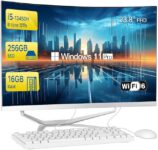
SZTPS 23.8″ Curved All-in-One PC
| Spec | What you get |
|---|---|
| Price | £338.81 (under budget!) |
| CPU | Intel Core i5-12450H (8 cores) – far better than Celeron |
| RAM | 16GB DDR4 – double the usual budget spec |
| Storage | 256GB SSD – fast, not eMMC |
| Screen | 23.8″ Curved IPS 1080p |
| OS | Windows 11 Pro |
| Included | Wired keyboard + mouse |
| Connectivity | Wi-Fi 6, Bluetooth 5.0, Ethernet |
Why this beats everything else at this price:
- Most £350 AIOs use Celeron + 8GB + eMMC. This uses i5 + 16GB + SSD.
- Windows 11 Pro instead of Home.
- Curved IPS screen (rare at this price).
- Keyboard and mouse included (no hidden costs).
Caveats (honest):
- Lesser-known brand (SZTPS) – not Dell/HP/Lenovo
- US keyboard layout (or buy a UK one for £10)
- No built-in webcam (add £20-30 for Zoom/Teams)
👉 Read our full SZTPS deal post here: SZTPS 23.8″ Curved All-in-One PC only £338.81 at Amazon UK (link to your deal post)
📋 Quick spec cheat sheet (print this)
Use this checklist when comparing budget AIO PCs under £400:
| Component | Minimum acceptable | What to avoid |
|---|---|---|
| CPU | Intel Core i3 or AMD Ryzen 3 | Celeron, Pentium, Atom |
| RAM | 8GB (but 16GB strongly preferred) | 4GB |
| Storage | 256GB SSD | 64GB/128GB eMMC, any HDD |
| Screen | 23.8″ 1920×1080 (1080p) | 1366×768 (HD) |
| Operating system | Windows 11 Home | Windows 11 in S mode (unless for a child) |
| Wi-Fi | Wi-Fi 5 (802.11ac) | Wi-Fi 4 (802.11n) |
| Webcam | Nice to have | Don’t assume it’s included |
| Keyboard/mouse | Check if included | Assume nothing |
❓ Frequently asked questions (UK)
Is 8GB RAM enough for Windows 11 in 2026?
Barely. Windows 11 itself uses about 3GB. With a browser (2-3GB), Spotify, and Word, you’re at 7-8GB. 16GB gives you breathing room and future-proofs you.
Can I upgrade the RAM in a budget AIO PC?
Sometimes. Many budget AIOs have soldered RAM (non-upgradeable). Check the spec sheet for “SO-DIMM slots” if upgradability matters to you.
What’s better: Intel Core i3 or AMD Ryzen 3?
They trade blows. For general office work and browsing, both are fine. Ryzen 3 often has slightly better integrated graphics. Either is infinitely better than Celeron.
Do I really need Windows 11 Pro?
Probably not for home use. Windows 11 Home is fine. But if a budget AIO comes with Pro for the same price, it’s a nice bonus.
Where’s the best place to buy a budget AIO PC in the UK?
Amazon UK often has the widest selection and easiest returns. Currys has physical stores but higher prices. eBay UK can have refurbished business desktops (e.g., Dell OptiPlex + separate monitor) which can be better value.
📌 Final summary
Buying a budget all-in-one PC under £400 in the UK is possible, but you need to be careful.
The three golden rules:
- Never buy Celeron, 4GB RAM, or eMMC storage – these are e-waste.
- Aim for Core i3/Ryzen 3, 16GB RAM, 256GB SSD – this spec will last years.
- Factor in hidden costs – webcam, UK keyboard, external storage.
The best value we’ve found in 2026: The SZTPS 23.8″ Curved All-in-One PC with i5-12450H, 16GB RAM, 256GB SSD, Windows 11 Pro for £338.81 on Amazon UK.
It breaks every rule of what a £350 AIO should be (in a good way).